
Setting up the START module
- The START module in Smarty is a separate license option, so before you start setting up, make sure your license includes this module.
- Connect the module cinema_start in the Smarty configuration in the INSTALLED_APPS section, restart Smarty and perform data migration.
python /usr/share/nginx/html/microimpuls/smarty/manage.py migrate --settings=settings;3. Create a hidden tariff package that will be used to allow subscribers to access the START movie catalog (can be called « Access to the START» directory); This tariff package will be automatically included for all imported films so that the film is visible to the subscriber in the catalog.
4. Create a tariff package that will be used to subscribe to the movie package (can be called « START» Cinema). When you buy START movies, this package will connect to the subscriber in Smarty, and when you disable the package — you will unsubscribe on the START side. This tariff should be made visible, assign a price and frequency.
To subscribe to START, you can also create several rates, which, in addition to START movies, will include channels and other services — such rates will be considered bundles.
Important: all tariffs and bundles created should be coordinated with START representatives, or with Microimpuls representatives, if the contract was executed through us.
5. Next, you should configure integration in the administration panel in the section « General settings Client» -> «Integration with the external systems API»:
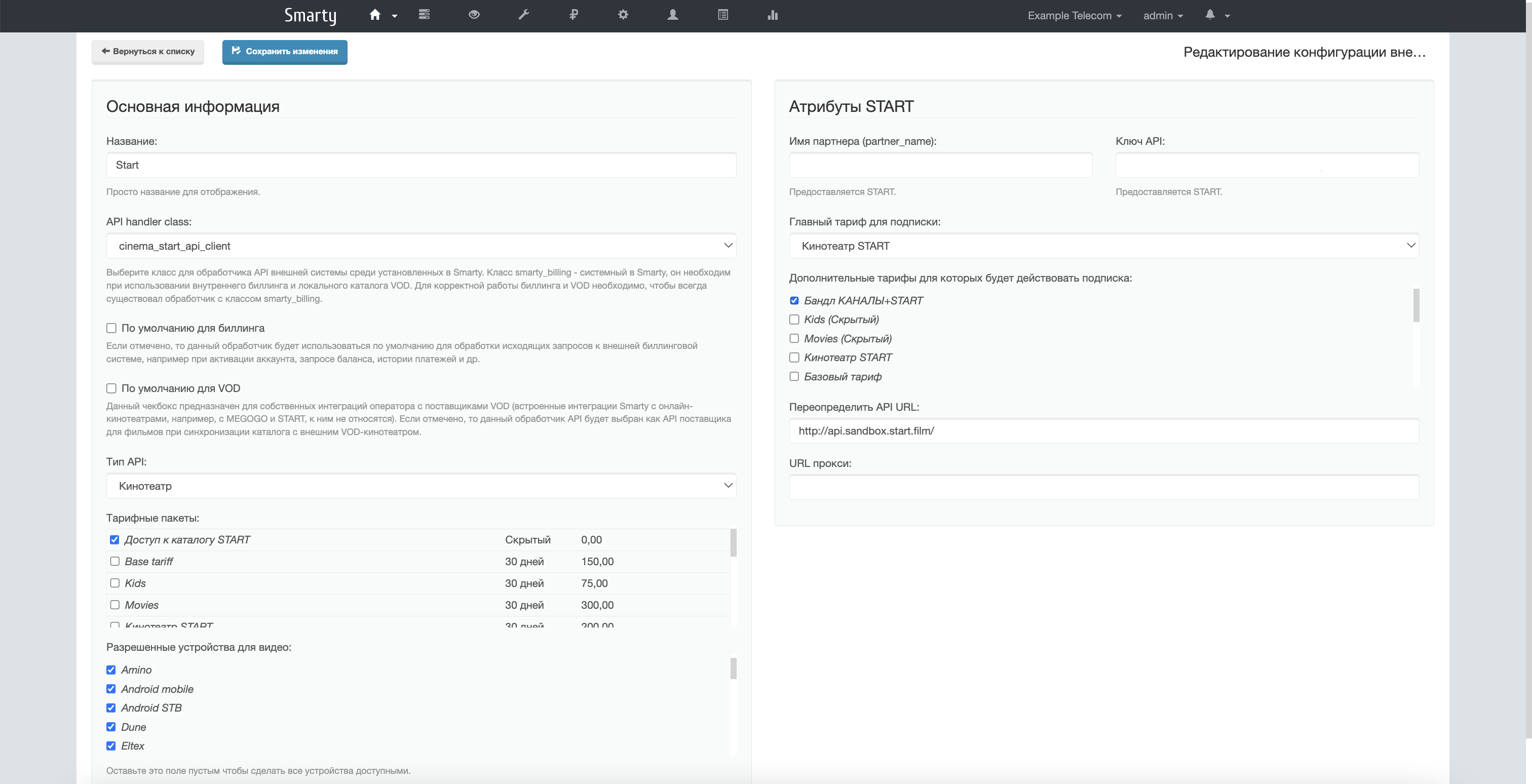
- Partner name — issued by START or Microimpuls
- Key API — issued by START or Microimpuls
- Override the URL API — the field to which you can enter the address to the START sandbox for testing
- Proxy URL — filled in by Microimpuls representatives in case the contract was executed through us.
6. After that, you should start the first import of films with the help of the command:
smarty_manage cinema_start_sync_content --settings=settings.Additional parameters:
--remove_outdated — when specified, the import script after the end of work deletes all films with the START handler that were not found in the START catalog, that is, it cleans old films.
--update_actors — when it is specified, when importing, an additional check will be made for the presence of posters from existing imported actors.
--update_assets_promos — when it is indicated, along with the import, a promo picture for assets is downloaded. Warning: if there is a promo, the asset is updated.
-client_id — the identifier of the client for which the synchronization is required. It is permissible to specify several customers. By default, synchronization is performed for all clients in Smarty.
The first synchronization can take about an hour due to the download of covers, subsequent synchronizations are faster. For regular synchronization of movies, you need to add a command call to crontab.
7. After the first synchronization, genres of Start films and their basic mapping on Smarty genres will be created. If you suddenly notice that the filtering of Start films by genres is incorrect, we recommend going to the section http://smarty.example.com/admin/cinema_start/startgenremap/ and reconfigure mapping in the right way (and you can add your genres and set up new connections for mapping). With the subsequent synchronization of films, genres will be rebounded.
8. Next, you need to configure sending statistics about views in Start on device pages in General settings Client -> Settings STB and applications -> block \"Settings for collecting TV viewing data\" include checkbox \"Enable sending statistics to the Start server when viewing Start content\" (enable sending immediately on all devices through their mass editing)

9. After that, you can check the display of the cinema in the interface — for this you need to connect the subscriber tariff « Access to the catalog START» — after that, the subscriber will be able to see films in the interface, but on the page of their description there will be a button «Buy»
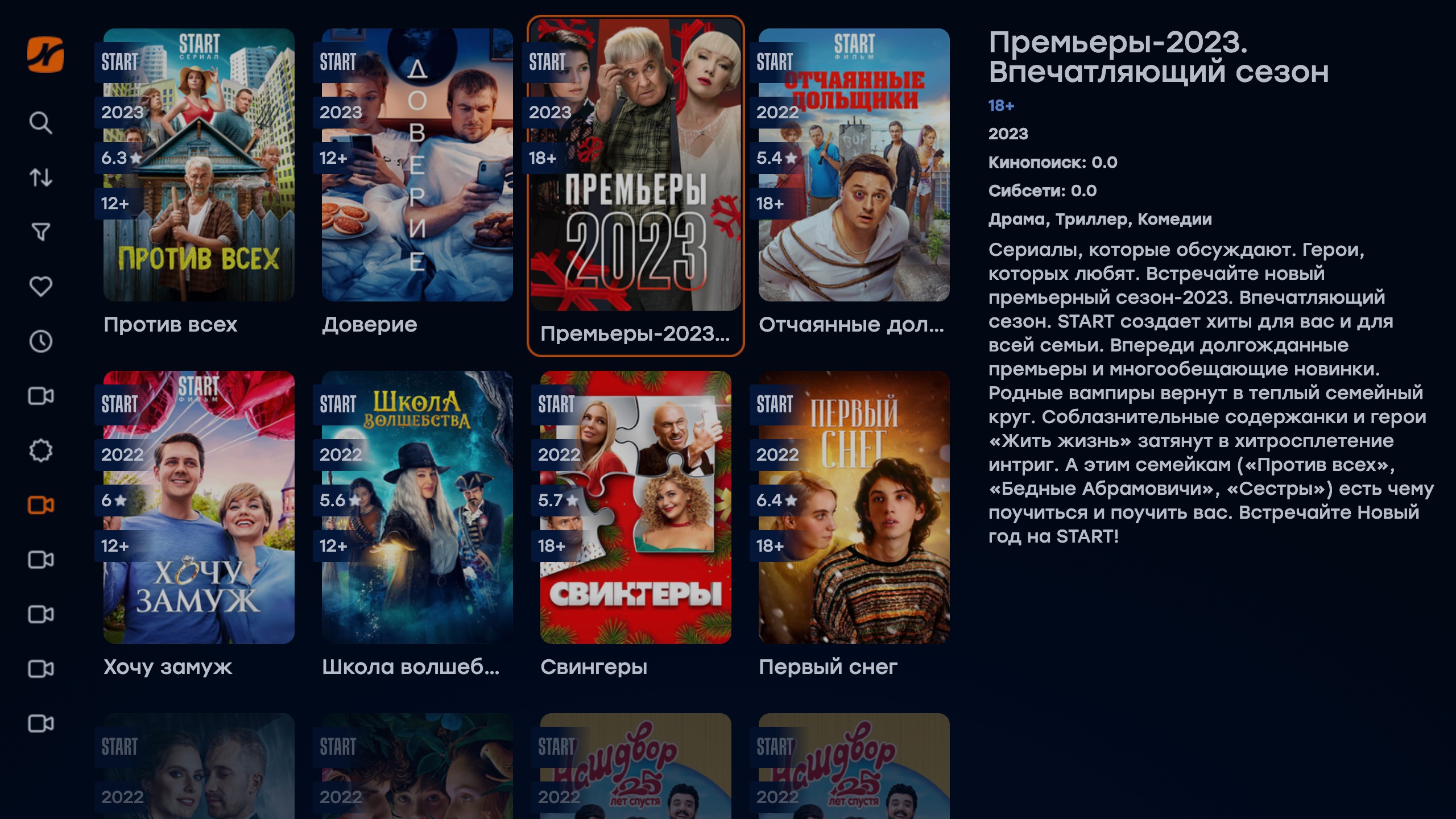
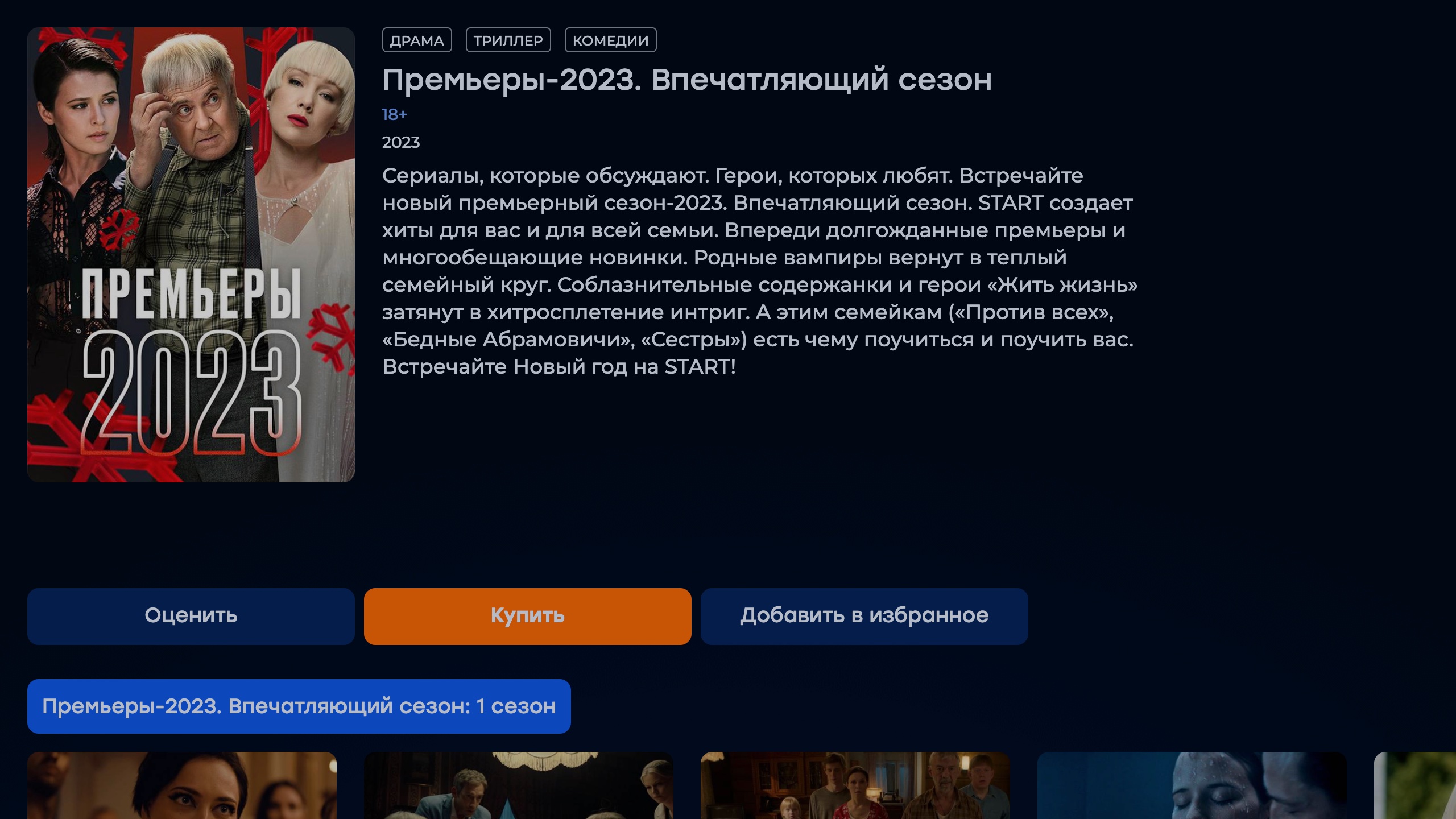
10. If the internal billing Smarty is used for write-offs and tariff management, then just click the button «Buy» in the interface; and with a sufficient balance, a subscription to the film will occur and it can be viewed. If not, then for testing you can connect this tariff to the subscriber through the admin and check that it is played.
11. To the button «Buy» there was a purchase of a film not only in Smarty, but also in external billing, you can develop an integration script for our website example.
12. For the correct renewal of subscriptions on the START side when using billing you need to add to the crontab management team check_video_subscriptions:
smarty_manage check_video_subscriptions -settings=settings.The team goes through all subscriptions to the cinema on the Smarty side (internal tariffsubscription objects in the django-admin Smarty) and renews them on the START side if necessary. Subscription on the START side is created with a margin of 1 day, relative to the subscription within Smarty, so that this management team is guaranteed to have time to work out and renew the movie theater subscription before it ends. It is recommended to run the command at least 1 time per day, and in the case of using the command check_accounts — start the command check_video_subscriptions right after her.
13. If necessary, you can check the subscription. This team will check if there is an external START subscription. In the absence of an appropriate tariff, the subscription on the outside is closed.
Team:
smarty_manage cinema_start_resync_subscriptions --settings=settings.Additional parameters:
--external_api_id — identifier of external integration of the START cinema into Smarty.
-custom_billing_api — when adding this setting, only those users to whom the billing handler c transmitted id is associated will be affected.
-customer_ids_file — the path to the file that contains a list of subscriber identifiers for which it is necessary to perform a subscription match check between Smarty and START. Subscriber identifiers are specified in the file line by line (one in a row). If this option is not specified, the team checks external subscriptions for all subscribers.
fake — displays subscriber identifiers for which actions will be performed. It also displays actions that will be taken but fails to take those actions.
