
Separation of devices into different types
In order to separate devices, you need to perform the following actions in Smarty:
1. Create a new device in the Smarty administration panel. You can do this in the section «Tvmiddleware» — «Device Types» or go to:
http://smarty.example.com/admin/tvmiddleware/playdevice/
where http://smarty.example.com — the address of your Smarty server.
System name of the device should consist of component parts devicewhere:device — device name (e.g. android_stb);model — device model (e.g. T96). The device model can be viewed on the device in the application in the section «Settings» — «Information».
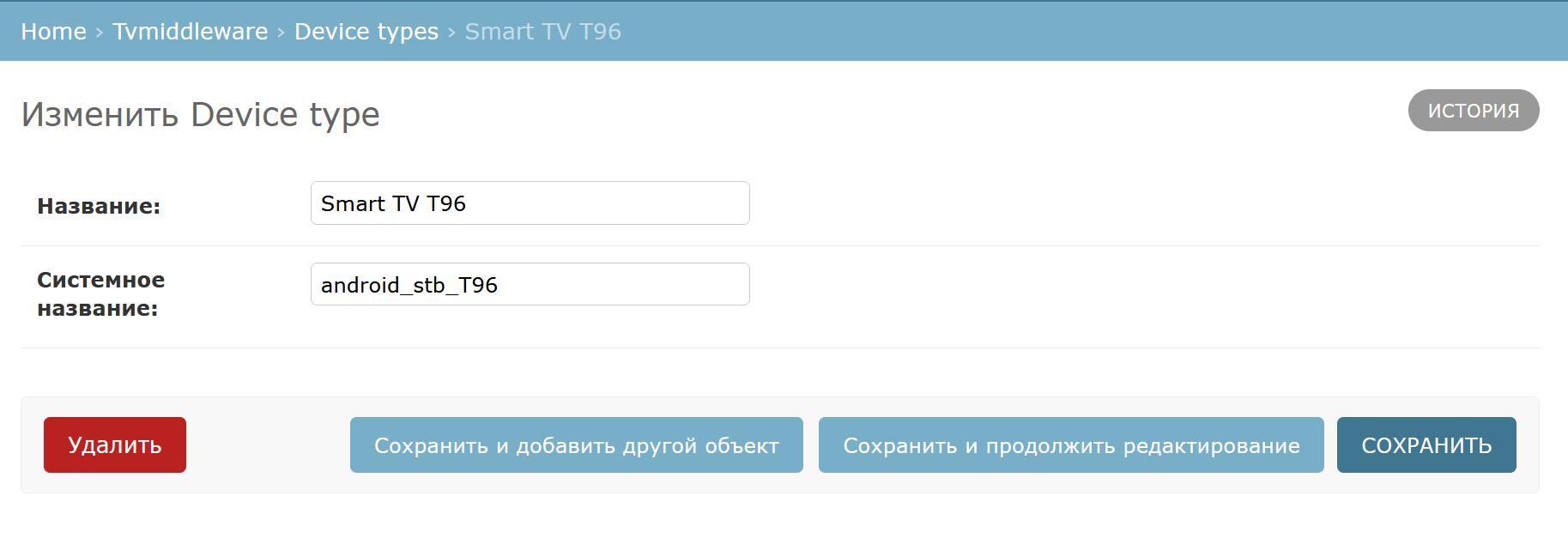
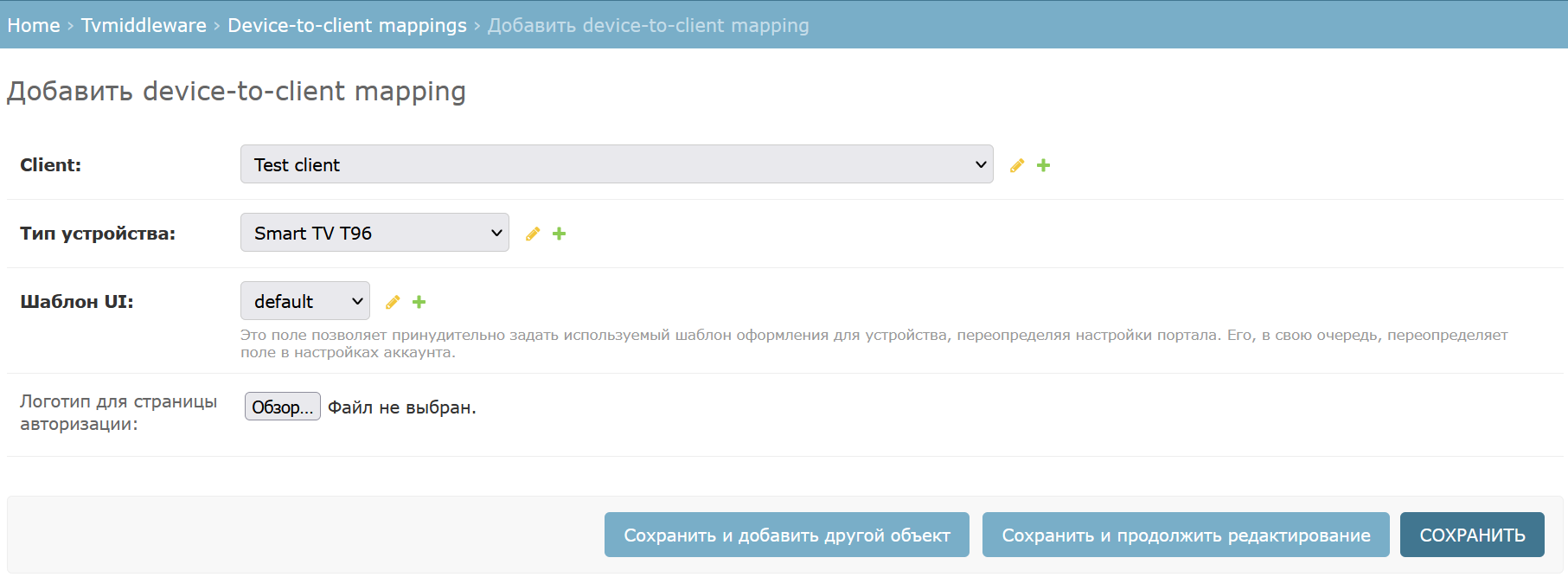
2. Create a mapping for your client. This feature is available in the section «Tvmiddleware» — «Device-to-client mappings» (similar to the first paragraph), or at:http://smarty.example.com/admin/tvmiddleware/clientplaydevice/
3. Specify in Smarty the new device parameter « type API» — «XML». To change the device API type, go to Smarty «General Settings» — « STB and Application Settings» or go to:http://smarty.example.com/tvmiddleware/playdevice/list/
The ability to change the type of API is available on the device edit screen in the block « Interaction settings».
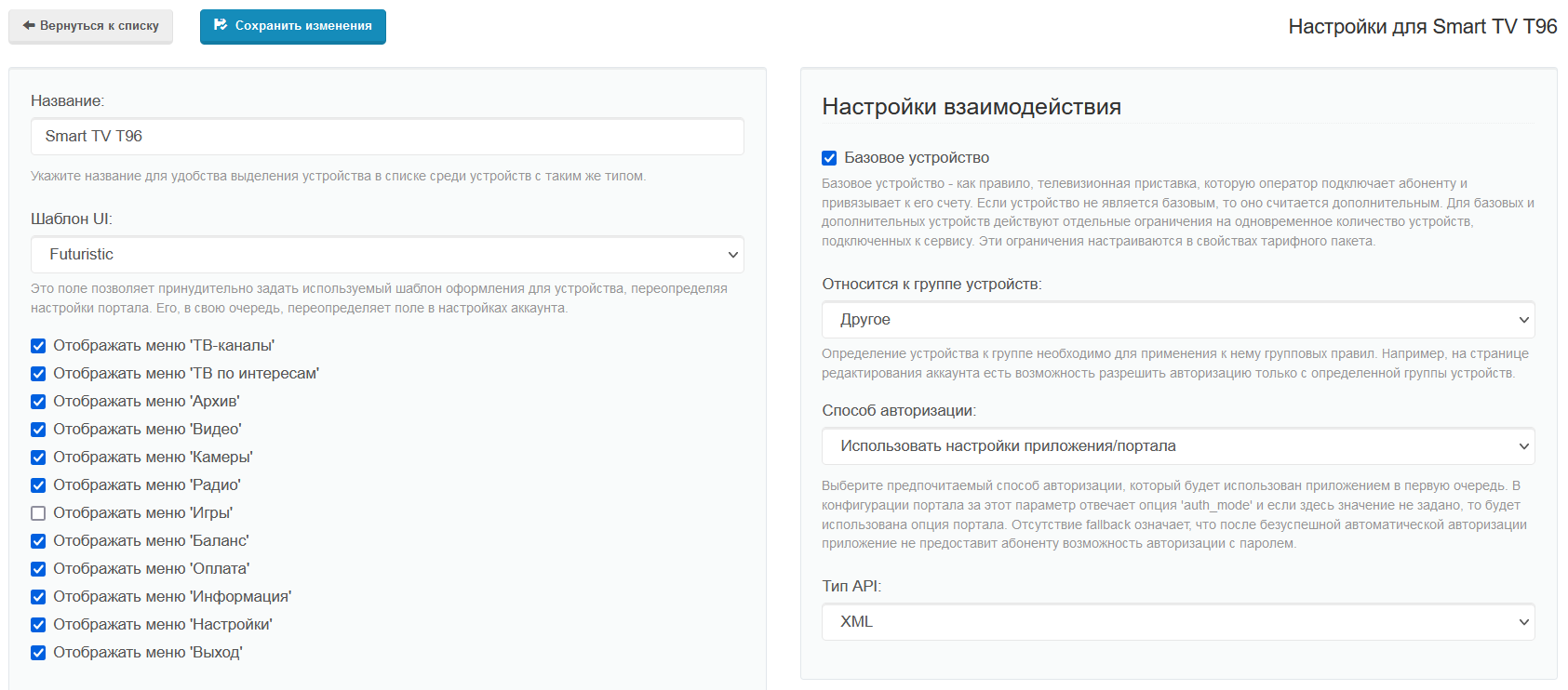
option « API» type; located in the lower left corner of the image
Now all devices of this model will be defined as a separate type of devices in Smarty.
Practical scope
This feature can be used to provide access to different types of content, depending on the device model. Below, for example, will be discussed the possibility of separating consoles, in order to provide a separate model of devices content quality 4K.
To provide a device with 4K quality content, you need to create and configure a separate streaming service (which will provide content of this quality) and specify in the block «Availability Options» the previously created device, removing all the others.
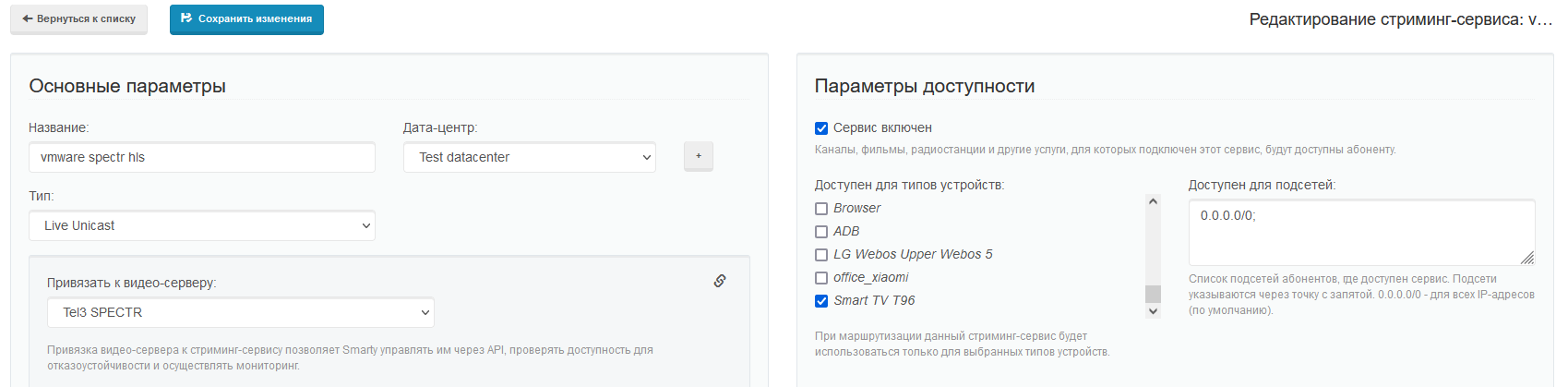
In a similar way, you can divide another type of content (archive, video library, widgets, ad units, etc.) by device, as well as set other options and parameters available on the device editing screen (for example, for models of devices with a truncated remote, you can enable a portal option) "remote_control_mode": "limited_buttons"when the other option will work "remote_control_mode": "all_buttons").
