
Additional options allow you to change the appearance and behavior of the application, and are specified in the configuration file /etc/microimpuls/portal/client.js.
The following options are available for the redmax interface.
Logic of work
Authorization regime
Option name: auth_mode, data type: string.
Possible values:
- password - by login and password (by default).
- device_uid A unique device identifier (usually a MAC address) or IP address. In case of unsuccessful authorization, the subscriber will be offered authorization by login and password.
- device_uid_wo_fallback - the same as device_uid, but without processing some situations of unsuccessful authorization and transition to login and password authorization.
- phone number login is carried out as a bundle of login / password (as a value) password) and telephone number/password.
Example:
var CLIENT_SETTINGS = {
///...
'auth_mode': 'password'
};
Missing service errors of authorization
Option name: omit_unsuccessful_login, data type: bool.
Possible values:
- true In case of errors with codes 3, 4, 7, 10, 11, 12 (codes error method TVMW API Login), the screen with the error information will be skipped and the login and password input form will be immediately opened (except for the mode)
auth_mode*wo_fallback). - falsely if any errors occur, a screen with error information (by default) will be shown.
Example:
var CLIENT_SETTINGS = {
///...
-omit_unsuccessful_loginfalse:
};
Verification of additional account status
Option name: check_account_status_reason, data type: bool.
Possible values:
- true Additional account status will be checked even in case of successful authorization (by default). For example, if the account is active, but the additional status is “Blocked for debt”, then the corresponding authorization error will be issued in the portal.
- falsely additional status will not be checked.
Example:
var CLIENT_SETTINGS = {
///...
-check_account_status_reason': true
};
Registration by phone number with confirmation by SMS
Option name: registration_available, data type: bool.
Possible values:
- true The registration button is displayed via SMS.
- falsely it is not displayed (by default).
To be able to register via SMS, you need to properly configure integration with the SMS gateway on the Smarty server side.
Example:
var CLIENT_SETTINGS = {
///...
'registration_available': false
};
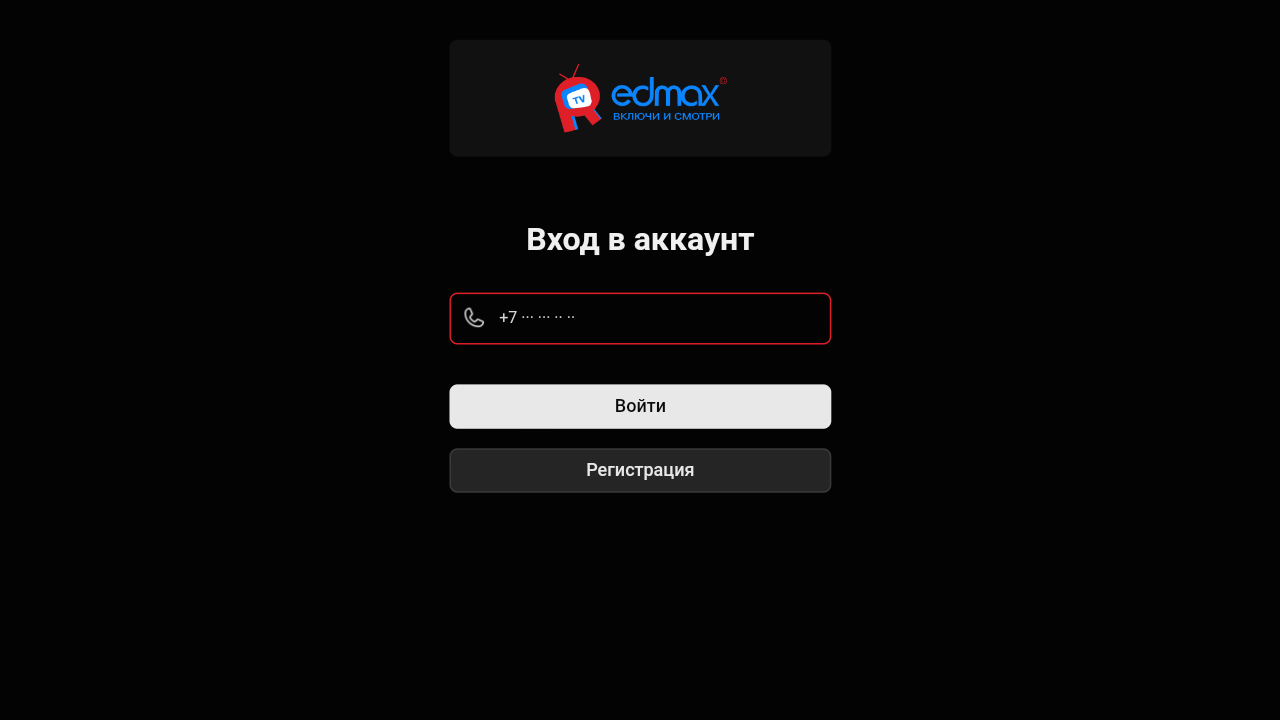
Mobile phone number mask in the registration screen
Option name: registration_phone_mask, data type: string.
By default +7 ??? ??? ?? ??.
The mask uses a special symbol ?, instead of which the input value will be substituted, the remaining characters will be displayed as is.
Example:
var CLIENT_SETTINGS = {
///...
'registration_phone_mask': '+7??????????
};
Saving the login and password in the input fields on the authorization screen when restarting the application
Option name: restore_login_form_input_from_settings, data type: bool.
Possible values:
- true when restarting the application and in the case of a logout in the input fields, the login and password from the previous session will be filled on the authorization screen.
- falsely the data will not be completed (by default).
It is recommended to use this option in the authorization method password to avoid loss of password by subscribers after logout.
Example:
var CLIENT_SETTINGS = {
///...
'restore_login_form_input_from_settings': false
};
Reboot the device after the first activation
Option name: reboot_device_after_login_with_password, data type: bool.
Possible values:
- true - after the subscriber is authorized with a login and password through the authorization form, the device will be rebooted.
- falsely no reboot will be made, the application will be downloaded as usual (by default).
It can be used to perform system billing operations during the initial “activation” of the prefix by the subscriber.
Example:
var CLIENT_SETTINGS = {
///...
'reboot_device_after_login_with_password': false
};
Delayed application loading at start
Option name: loading_timeout, data type: int.
The option allows you to set the number of milliseconds by which the initial download of the portal will be delayed. It can be used, for example, to customize the portal to display a welcome picture before launching.
By default 1000, which corresponds to one second. If you specify a zero or too small value, then some application functions on some devices may be disrupted due to asynchronous implementation of the API of some devices. For example, a small delay is necessary to be able to determine the device not only by type, but also by model (if Smarty configures the appropriate types of devices with a model) for Android consoles.
Example:
var CLIENT_SETTINGS = {
///...
'loading_timeout': 1000
};
Selection of the application interface used through account settings in Smarty
Option name: check_account_template, data type: bool.
Possible values:
- true - After the account is authorized, the template installed in the Smarty account settings will be checked, and if it differs from the one used, the application will be restarted in the desired template (by default).
- falsely The set template in the account settings in Smarty will be ignored.
Example:
var CLIENT_SETTINGS = {
///...
'check_account_template': true
};
Managing the display item "Player Selection" in the "Settings" screen
Option name: show_change_player_settings, data type: bool.
Possible values:
- true on the “Settings” page inside the application, the “Select Player” option will be displayed for those devices that support it (currently these are Android devices under the build version above 2.0).
- falsely - the item "Select player" on the settings page will be hidden (by default).
Example:
var CLIENT_SETTINGS = {
///...
'show_change_player_settings': true
};
Suspension of server requests in Stand-By mode
Option name: block_request_in_standby, data type: bool.
Possible values:
- true This includes blocking requests to the server if the device is in Stand-By mode. After leaving Stand-By, sending requests to the server is restored, however, the data in the interface may be outdated for some time.
- falsely Requests do not stop even in Stand-By, the data displayed in the interface does not become outdated (by default).
The option allows you to save server resources in moments of downtime of user devices.
Example:
var CLIENT_SETTINGS = {
///...
'block_requests_in_standby': false
};
Failure tolerance
Server availability check interval
Option name: health check_interval, data type: int.
Set a time interval in milliseconds through which requests to check the status of the server will be made.
By default: 300000 (5 minutes).
Example:
var CLIENT_SETTINGS = {
///...
'health_check_interval': 300,000
};
Management logic
Switching channels within the selected category
Option name: switching_channels_inside_category, data type: bool.
Possible values:
- true Switching channels with Ch+/- buttons will occur within the selected channel category.
- falsely Switching will occur within the All category, even if another category is selected (by default).
Example:
var CLIENT_SETTINGS = {
///...
'switching_channels_inside_category': false
};
Showing preliminary instructions at the first start of the application
For multilingual applications, it is very important to give the user the opportunity to choose the interface language from the very first moment of use show_setup_intro it allows you to do this and not only. When this option is enabled at the first start of the application, the user will meet the choice of the interface language, the ability to set a PIN code, as well as other instructions from the operator that he wants to place in the initial configuration block of the application.
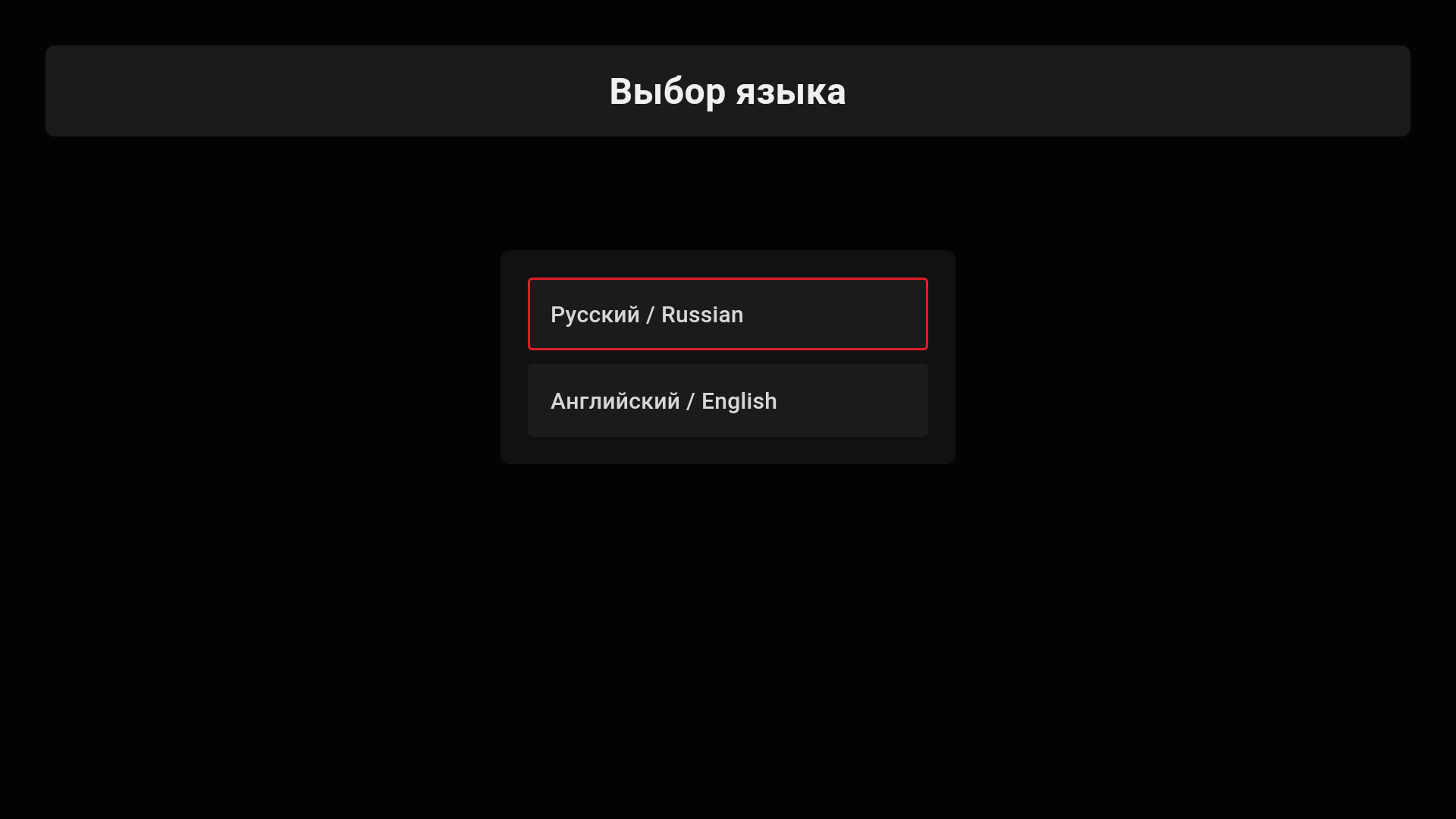
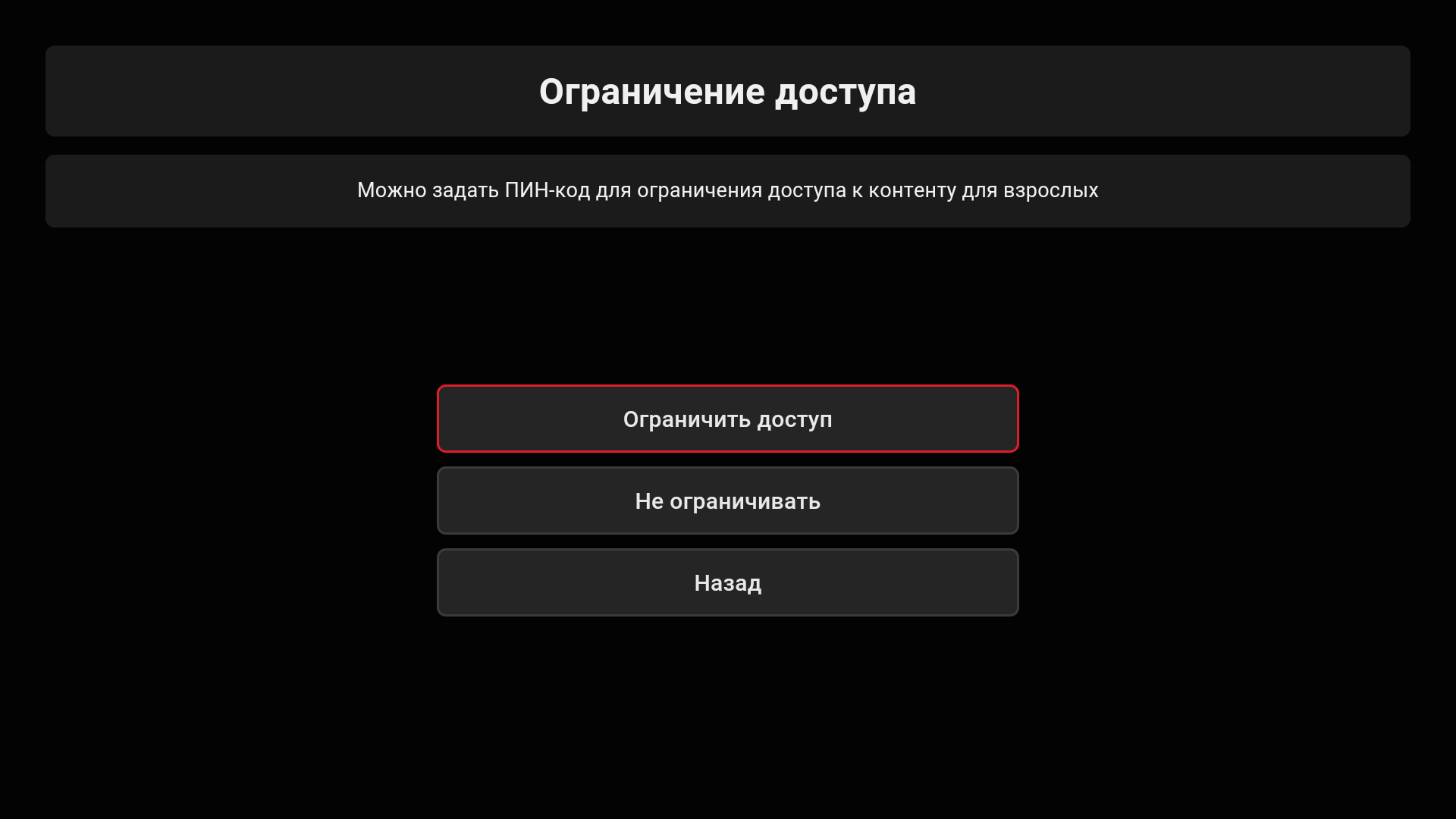
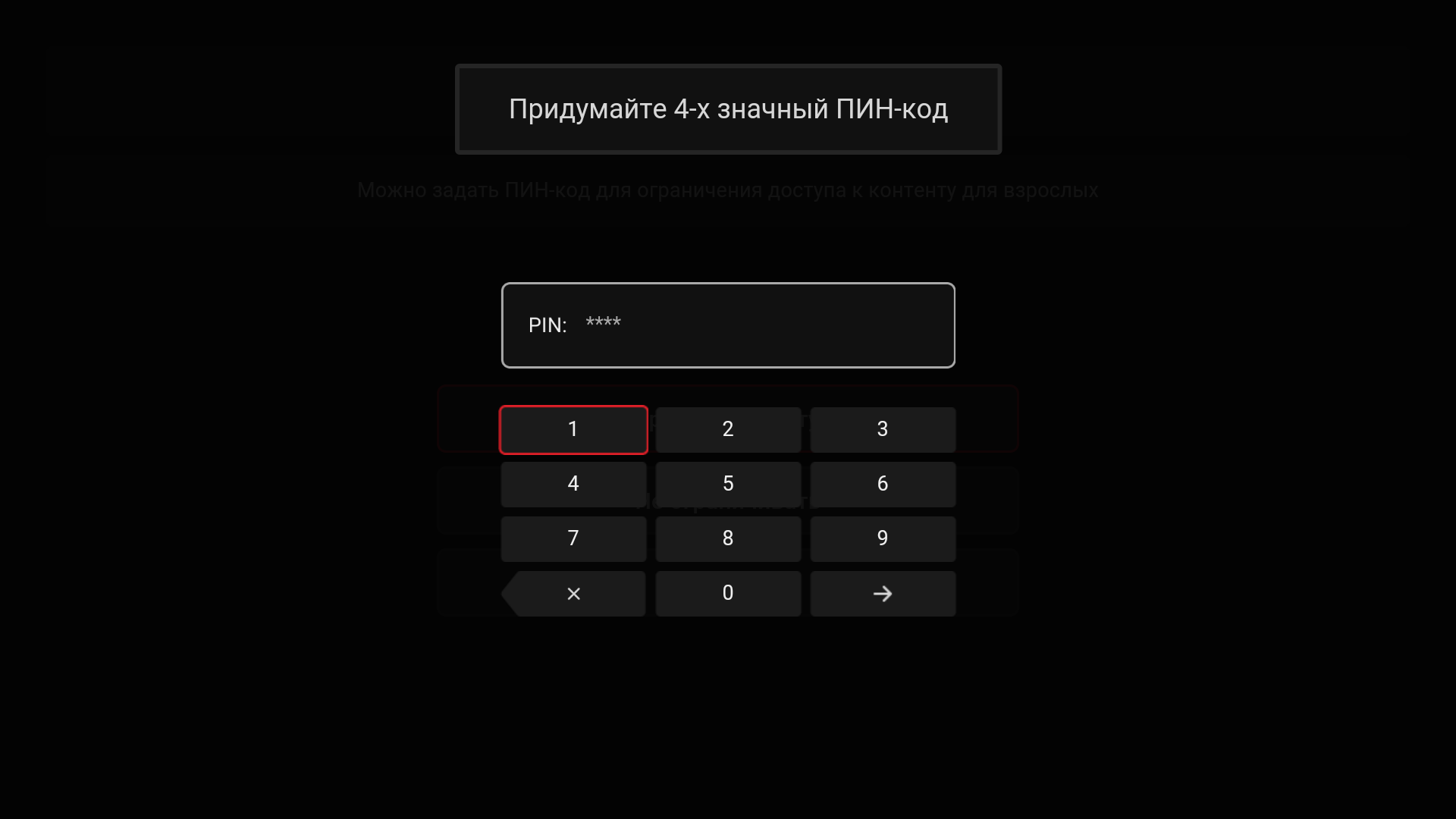
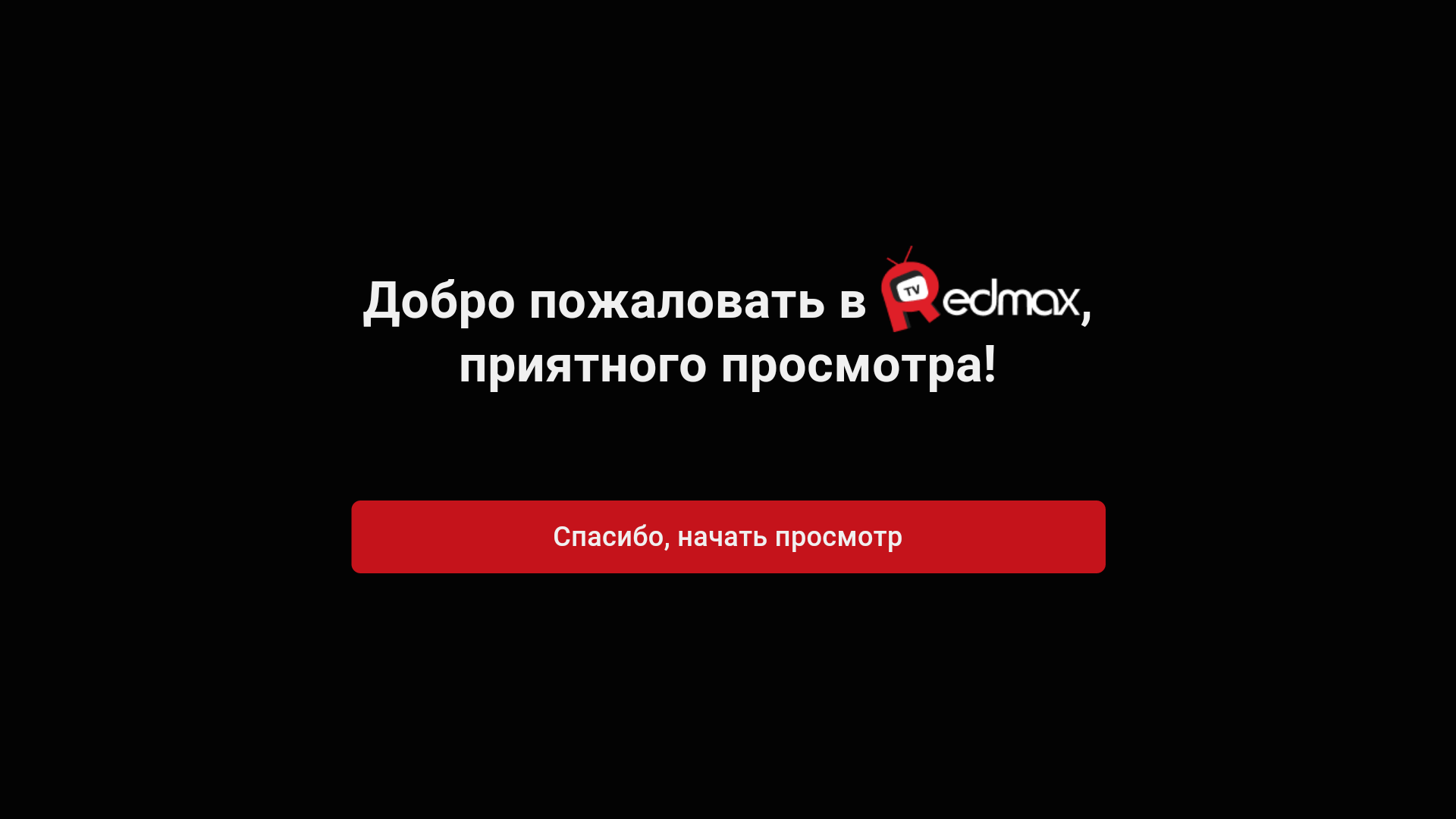
After the PIN code generation screen, you can arrange any images to the operator’s taste, and you can also request a special Figma file from your manager to create pictures-instructions for using the application by analogy with the above.
var CLIENT_SETTINGS = {
///..
  // enabling the primary setting display
'show_setup_intro': true,

// images for display after selecting the remote without color buttons
'setup_limited_remote_instructions': ['/custom/img-1.png', '/custom/img-2.png']
};
Reproduction of content
Player rewind step
Option name: player_wind_step, data type: int.
Allows you to set the step of rewinding the player in the archive and video library mode in one click of the rewind button. Step is given in seconds, by default 30.
Example:
var CLIENT_SETTINGS = {
///...
'player_rewind_step': 30
};
Volume up/down step
Option name: volume_control_step, data type: int.
By default 5 (percentage points out of 100, where 100 is the maximum volume, 0 is the minimum).
Example:
var CLIENT_SETTINGS = {
///...
'volume_control_step': 5
};
Keeping the selected aspect ratio for each channel separately
Option name: save_aspect_ratio_per_channel, data type: bool.
Possible values:
- true in the application settings on the device, the aspect ratio selected by the user will be stored separately for each channel.
- falsely the last selected aspect ratio common to all channels will be retained (by default).
Example:
var CLIENT_SETTINGS = {
///...
'save_aspect_ratio_per_channel': false
};
Ignoring the aspect ratio value coming from Smarty
Option name: ignore_server_aspect, data type: bool.
Possible values:
- true Setting an aspect ratio on the channel editing page in Smarty will not affect the channel aspect ratio (by default).
- falsely The “Party Ratio” value on the channel editing page in Smarty will be taken by default for channels.
Example:
var CLIENT_SETTINGS = {
///...
'ignore_server_aspect': false
};
Save the selected audio track language for each channel separately
Option name: save_audio_track_lang_per_channel, data type: bool.
Possible values:
- true in the application settings on the device, the user selected audio track language will be stored separately for each channel.
- falsely the last selected language common to all channels will be saved (by default).
Example:
var CLIENT_SETTINGS = {
///...
'save_audio_track_lang_per_channel': false
};
Automatically Hiding Menus When Playing Content
Option name: autohide_timer, data type: int.
Allows you to set a timeout (in minutes), after which the current screen will be hidden and a full-screen player will be opened, if there is currently playback of any content.
By default 0 (hidden off).
Example:
var CLIENT_SETTINGS = {
///...
'autohide_timer': 2
};
Reproduction of streams-stubs for channels with locks
Option name: request_url_for_locked_channels, data type: bool.
Possible values:
- true - when starting the channel with a lock, an attempt is made to start a stream-stub and display a banner-stub, if the stream-stub for the channel is not set, an information pop-up is shown.
- falsely when you start the channel with locks, an information pop-up with a list of tariffs for connecting is shown (by default).
Example:
var CLIENT_SETTINGS = {
///...
'request_url_for_locked_channels': false
};
Setting a special ratio of screen sides when playing movies
Option name: set_default_aspect_ratio_for_vod, data type: bool.
Possible values:
- true after the inclusion of the playback of the film from the video library, the aspect ratio of 16×9 will be forcibly established.
- falsely - the aspect ratio selected earlier by the subscriber will be retained (by default).
Example:
var CLIENT_SETTINGS = {
///...
'set_default_aspect_ratio_for_vod': false
};
Display time of the beginning and end of the transfer in the infobar
Option name: infobar_time_display_mode, data type: string.
Allows you to change the option of displaying the time of the beginning and end of the transfer in the infobar in the archive mode or paused Live TV.
Possible values:
- by_epg time in the infobar is displayed according to the transmission program (by default).
- by_duration the start time of the transmission is set at 00:00, and the end time is set equal to the duration of the transmission.
Example:
var CLIENT_SETTINGS = {
///...
'infobar_time_display_mode': "by_epg"
};
Preserving the position of the selected subtitle track
Option name: save_subtitle_track_lang_per_channel, data type: bool.
Possible values:
- true for each channel, the language of the selected subtitles is saved and the next time the channel starts, this language will be first in the list after the disconnect point.
- falsely behavior by default (by default).
Example:
var CLIENT_SETTINGS = {
///...
'save_subtitle_track_lang_per_channel': false
};
Flussonic stream request management in Pause Live TV mode
Option name: time_offset_from_now_for_tv_use_parameter, data type: int.
Adjusts the number of seconds from live at which a stream request from flussonic occurs in Pause Live TV mode. By default: 15.
Example:
var CLIENT_SETTINGS = {
///...
'time_offset_from_now_for_tv_pause_parameter': 15
};
Appearances are common
Additional CSS class for body interface
Option name: custom, data type: string.
Allows you to connect an additional class to the body portal tag. It can be used to customize the interface through an additional CSS file. No default.
Example:
var CLIENT_SETTINGS = {
///...
'custom_body_class': 'custom'
};
Main menu items
Option name: custom_main_menu_items, data type: array.
The option sets the main menu items that you want to display, possible items:
- tv - Television channels
- vod - Cinema
- applications (quick button to enter the list of applications on Android devices)
- favorites (shows the category of selected films)
- search
- settings - settings
No default.
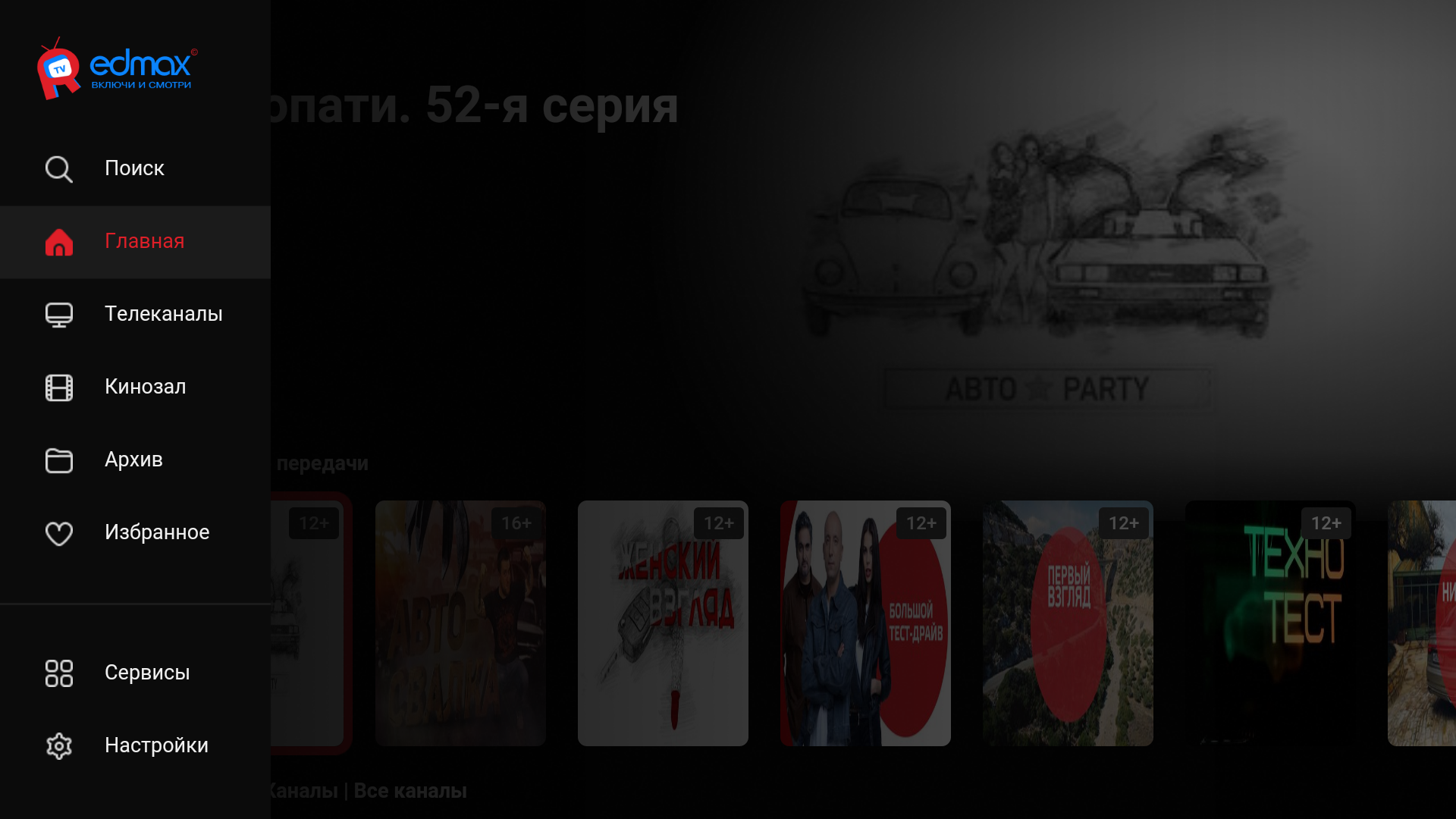
Example:
var CLIENT_SETTINGS = {
///...
'custom_main_menu_items': ['tv', 'vod', 'search', 'settings', 'apps', 'favorites']
};
Managing the template with different remotes
Option name: remote_control_mode, data type: string.
Possible values:
- all_buttons - the template is adjusted to control the remotes with a full set of buttons (by default).
- limited_buttons The template adapts to control remotes with a limited set of buttons, as a rule, such remotes are set with modern Smart TVs and STB.
Example:
var CLIENT_SETTINGS = {
///...
'remote_control_mode': 'all_buttons'
};
Appearance - TV
Depth of TV program display
Option name: max_epg_depth, data type: int.
Determines the EPG depth in days for the TV screen. If the value of the option is greater than 0, the depth will be equal to this value. If the option is not set (or equal to 0), then the archive depth will be used for the channel with the archive max_archive_duration if the channel does not have an archive, the program will be displayed only for the current day.
By default 0.
Example:
var CLIENT_SETTINGS = {
///...
'max_epg_depth': 0
};
Request randomization interval for EPG update
Option name: expired_programs_update_interval_randomization, data type: int.
By default: 55000 (55 seconds).
The option allows you to set the interval for randomizing the EPG request. The load on the server is “smeared” in time within this interval, which ensures that after the transfer is over, all active devices do not send a request for an update at the same time. The flip side of this optimization is that after becoming obsolete, the program will not be updated instantly, but with a possible delay of 5 to 55 seconds, so if this delay is critical, it is possible to reduce this interval or remove it altogether (while increasing the load on the server).
Example:
var CLIENT_SETTINGS = {
///...
'expired_programs_update_interval_randomization': 55,000,
};
Appearance - video library
Grouping of films by category or genre
Option name: filter_videos_by_genres, data type: bool.
Possible values:
- true movies will be grouped by genre (by default).
- falsely Films will be grouped into categories (genres in Smarty with the option “Is a Category” enabled).
Example:
var CLIENT_SETTINGS = {
///...
'filter_videos_by_genres': true
};
How to sort movies by default
Option name: default_vod_sort_order, data type: string.
Possible values:
- - created_at - by the date of addition (first the newest) (by default).
- -kinopoisk_rating - according to the rating of Kinopoisk (first the most popular).
- -imdb_rating According to IMDB rating (first most popular).
- -year the year the film was released (the newest first).
- -premiere_date the release date of the film (the newest first).
- name by name (in alphabetical order).
- -updated_at - on the date of change of the film, first the newest (sort is updated after resetting the cache).
Example:
var CLIENT_SETTINGS = {
///...
'default_vod_sort_order': "-created_at"
};
Sorting the list of actors on the film page
Option name: actorsdata type string.
Possible values:
- birthdate sorting by date of birth, from older to younger.
- birthdate sorting by date of birth, from younger to older.
- name sorting by name, in alphabetical order (by default).
- -name sorting by name, in reverse alphabetical order.
- cyrillic-first sorting by name, first come actors with cyrillic.
- film sorting actors by the number of films with their participation, in ascending order (from the actor with the least number of films to the actor with the most films).
- -film_count - sorting of actors, by the number of films with their participation, in descending order.
Example:
var CLIENT_SETTINGS = {
///...
-actors'name'
};
Limiting the number of actors on the film page
Option name: actors_request_limitdata type int. Default value: 16.
Example:
var CLIENT_SETTINGS = {
///...
-actors_request_limit': 16
};
Appearance - archive
Grouping of records by category or genre
Option name: filter_archive_by, data type: string.
Possible values:
- categories entries will be grouped by program categories (Program categories objects in Smarty Django panel), the default value.
- genres Films will be grouped by genres of programs (Program genres objects in Django-panel Smarty).
Example:
var CLIENT_SETTINGS = {
///...
'filter_archive_by': 'categories'
};
Appearance - settings
Display of the menu item "Fare Management"
Option name: show_packages, data type: bool.
Possible values:
- true - the Settings screen will display the menu item "Fare Management" for the ability to connect / disable tariff packages.
- falsely The “Fare Management” menu will be hidden (by default).
Example:
var CLIENT_SETTINGS = {
///...
'show_packages': false
};
Displaying the privacy policy
Option name: legal-document-policy-id, data type: int. By default: -1.
This option is used to display the privacy policy. It must specify the ID of the legal document that will be available to the user. Document ID can be found by requesting a list of all documents. Also, if you open a tab with a specific document in the admin, then the address bar will contain its ID.
Example:
var CLIENT_SETTINGS = {
///...
-legal-document-policy-id': -1
};
Displaying the User Agreement
Option name: legal-document-user-terms-id, data type: int. By default: -1.
This option is used to display the user agreement. It must specify the ID of the legal document that will be available to the user. Document ID can be found by requesting a list of all documents. Also, if you open a tab with a specific document in the admin, then the address bar will contain its ID.
Example:
var CLIENT_SETTINGS = {
///...
-legal-document-user-terms-id': -1
};
Display of the menu item "Promocode"
Option name: enable_promo_activation, data type: bool.
Shows the menu item "Settings" -> "Promocode". By default falsely.

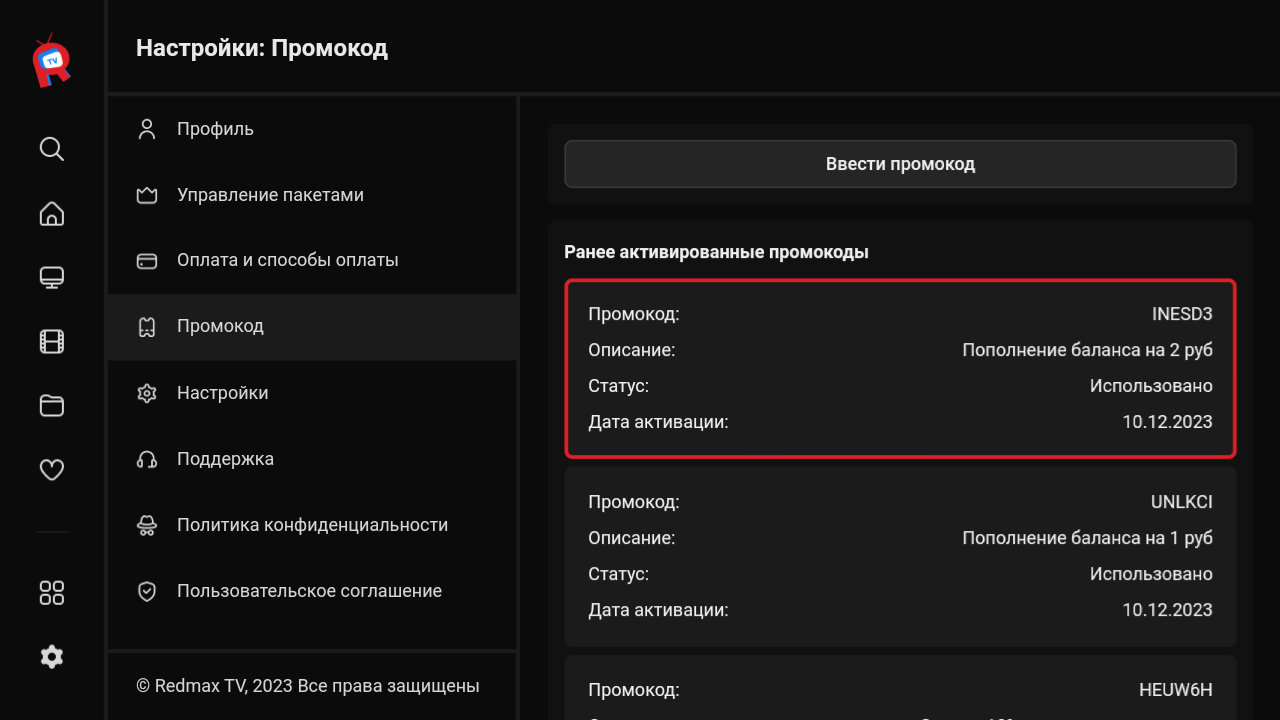
Example:
var CLIENT_SETTINGS = {
///...
'enable_promo_activation': true
};
